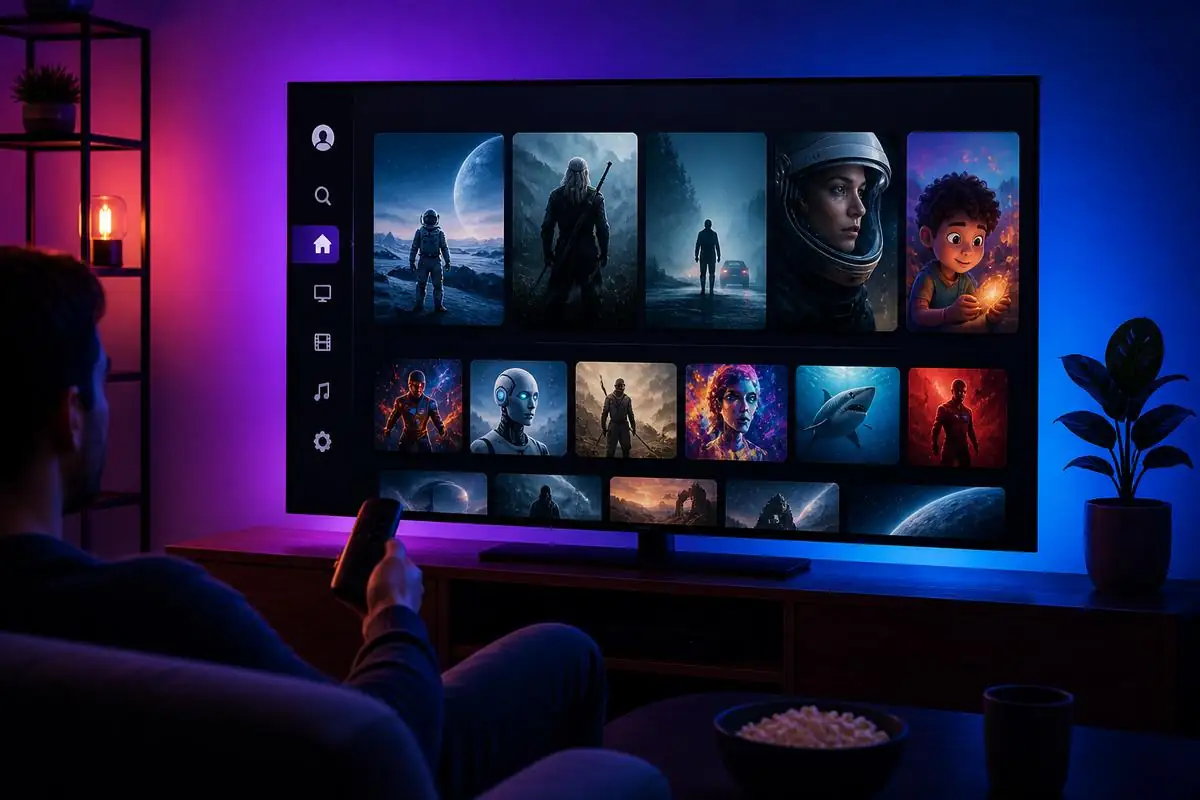
VOD stands for video on demand: content you can start whenever you like, rather than watching it when it is scheduled. In an IPTV app, VOD usually appears as two sections, Movies and Series, next to Live TV.
VOD, catch-up and live TV
These three are easy to confuse:
| What it is | When you can watch | |
|---|---|---|
| Live TV | Channels playing in real time | As it is broadcast |
| Catch-up | Programmes already shown on a channel | For a limited period afterwards, where supported |
| VOD | A library of films and series | Any time while the title is in the library |
Catch-up is found through the programme guide; VOD is found by browsing or searching the library. Our EPG explainer covers how catch-up uses the guide.
How libraries are organised
When you log in with an Xtream Codes login, your app downloads a catalogue of available titles. Each entry carries information such as the title, poster, year, description, cast, running time and, for series, seasons and episodes. Apps present this as rows of posters grouped into categories.
Libraries change over time as titles are added and removed. If particular films or series matter to you, check for them during a trial month.
Why VOD is more forgiving than live TV
A live stream must arrive in real time. A VOD title is a file sitting on a server, so your player can download ahead of where you are watching. A brief slowdown in your connection is absorbed by that buffer, which is why a film often plays smoothly on a connection that struggles with live sport.
If a title still stutters:
- Pause for ten seconds to let the buffer fill, then play.
- Try another title. If only one stutters, the problem may be that file's bitrate or the server it is on.
- Check the connection if everything stutters. See our buffering guide.
Getting more from on demand
- Continue watching. Most apps remember where you stopped. Look for a "continue watching" or "recently watched" row.
- Search. With large libraries, the search function is much faster than scrolling with a remote.
- Favourites. Mark titles to find them later.
- Subtitles and audio tracks. During playback, open the player's options to choose subtitle and audio tracks where the title includes them.
- Switch player. If a title has no sound or the subtitles are out of sync, try a different built-in player in the app's settings.
Quality varies by title
Each VOD title is encoded individually, so quality can differ from one film to the next. Some are available in 4K; many are HD. The 4K, HDR and 8K explainer covers what your setup needs to make the most of higher-quality titles, and our movie night guide covers the TV settings.